
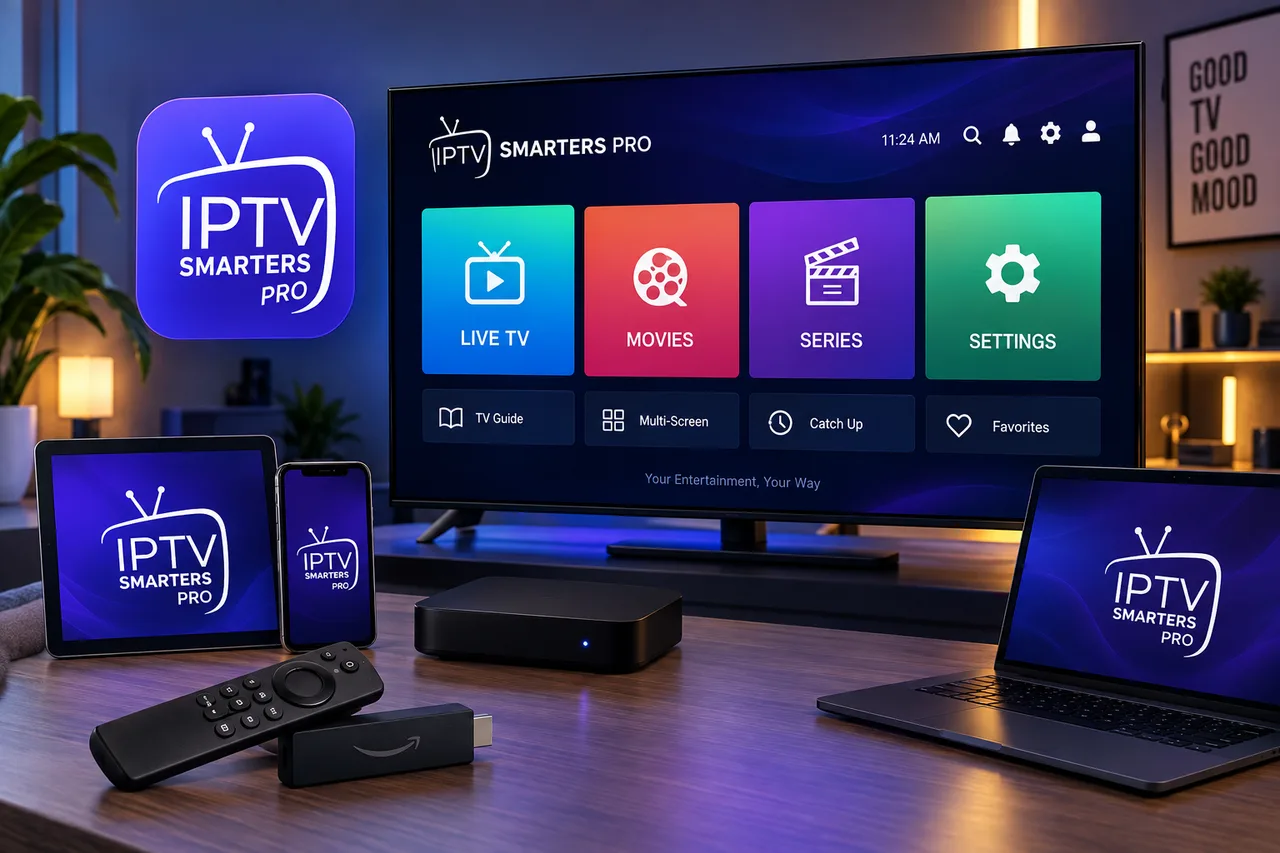
IPTV Smarters Pro is a popular media player used to organize and play IPTV playlists on supported devices. In this 2026 setup guide, you'll learn how to install IPTV Smarters Pro, connect your IPTV subscription, load your channels, and troubleshoot common playback problems.
Important: IPTV Smarters Pro is a player, not an IPTV service. It does not provide TV channels or an IPTV subscription by itself. You need a compatible and legally obtained IPTV service or playlist to use with the application.
What Is IPTV Smarters Pro?
IPTV Smarters Pro is a media player designed to let users access and organize their own streaming content through supported playlists or provider credentials. The official Smarters Pro website describes the application as a media player and states that it does not provide or sell IPTV subscriptions or streaming content.
Depending on the version and platform, the application can support IPTV playlists and provider login methods such as M3U or other supported credentials. The exact options can vary between versions, so always follow the setup screen shown on your device.
For official information and current downloads, use the official Smarters Pro website.
Is IPTV Smarters Pro an IPTV Service?
No. IPTV Smarters Pro is a media player, not an IPTV provider. The application does not automatically give you access to live TV channels, movies, or series.
Think of it like a video player: the application provides the interface and playback environment, while your IPTV provider supplies the playlist or login information required to access your content.
This distinction is important because installing IPTV Smarters Pro alone will not give you an IPTV channel list.
If you are looking for an IPTV subscription to use with a compatible player, you can view Sonix IPTV plans or learn more about what to check before choosing a provider in our Best IPTV Services in 2026 guide.
What Do You Need Before Setting Up IPTV Smarters Pro?
Before installing the application, make sure you have three basic things: a compatible device, a stable internet connection, and valid IPTV credentials or a playlist from your provider.
- A compatible Smart TV, streaming device, phone, tablet, or computer
- A reliable internet connection
- An active IPTV subscription or legally obtained playlist
- Your provider's login information if required
- An M3U/M3U8 playlist if your provider uses playlist-based setup
- EPG information if your provider supplies a compatible TV guide
If you are using Sonix IPTV, contact support with your device type and subscription details if you need help with the setup information.
How to Install IPTV Smarters Pro
Installation depends on your device. IPTV Smarters Pro and similarly named Smarters applications can have different versions across platforms, so always verify that you are downloading the correct application from the official source or your device's official app store.
How to Install IPTV Smarters Pro on Android
On supported Android devices, search for the correct Smarters Pro application through the official app distribution channel available for your device.
- 1. Open the Google Play Store or the official download source.
- 2. Search for the correct Smarters Pro application.
- 3. Verify the developer and application information before installing.
- 4. Select Install.
- 5. Open the application after installation.
- 6. Continue with the login or playlist option provided by your IPTV service.
Avoid downloading random APK files from unknown websites. IPTV player names are frequently copied by unrelated websites, so checking the developer and official source is important.
How to Set Up IPTV Smarters Pro With Your IPTV Subscription
The exact login screen can vary between IPTV Smarters Pro versions. Your provider may give you Xtream Codes credentials, an M3U/M3U8 playlist URL, or another supported connection method.
Option 1: Using Provider Login Credentials
If your version supports a provider login method such as Xtream Codes, you will normally need information such as your server URL, username, and password.
- 1. Open IPTV Smarters Pro.
- 2. Select the appropriate login or IPTV connection option.
- 3. Enter the server or portal information supplied by your provider.
- 4. Enter your username.
- 5. Enter your password.
- 6. Give the playlist a recognizable name if requested.
- 7. Select Add User, Login, or the equivalent button.
- 8. Wait for the application to load your available content.
Make sure you copy the credentials exactly. A single missing character in the server URL, username, or password can prevent the playlist from loading.
Option 2: Using an M3U or M3U8 Playlist
If your IPTV provider gives you an M3U or M3U8 playlist URL and your version of the application supports it, you can load the playlist directly.
- 1. Open IPTV Smarters Pro.
- 2. Select the option for adding a playlist or remote playlist.
- 3. Choose the M3U or compatible playlist method.
- 4. Enter the playlist URL supplied by your provider.
- 5. Enter a playlist name if requested.
- 6. Save or add the playlist.
- 7. Allow the application to process the channel list.
If the playlist does not load, first verify that the URL is still active and that your IPTV provider supports the playlist format.
How to Set Up Sonix IPTV on IPTV Smarters Pro
If you are using a Sonix IPTV subscription with a compatible version of IPTV Smarters Pro, the process is straightforward: install the player, open it, and enter the connection information supplied with your Sonix IPTV account.
- 1. Install IPTV Smarters Pro on your supported device.
- 2. Open the application.
- 3. Select the connection method provided by Sonix IPTV.
- 4. Enter your IPTV credentials carefully.
- 5. Save the connection.
- 6. Wait for your Live TV, Movies, Series, or other available categories to load.
- 7. Open a few channels and test playback before changing additional settings.
If you have not subscribed yet, you can learn more about the Sonix IPTV free trial before choosing a subscription.
If you need help, visit the Sonix IPTV contact page and provide your device type and the issue you are experiencing.
How to Install IPTV Smarters Pro on Firestick
Fire TV devices are commonly used for IPTV streaming because they provide a dedicated interface for television viewing. The exact availability of Smarters Pro can change, so use the official application source available for your Fire TV device and region.
Once the application is installed, open it and enter the IPTV credentials or playlist supplied by your provider.
- 1. Open your Fire TV home screen.
- 2. Go to the Apps section.
- 3. Search for the correct Smarters application.
- 4. Install the available official version.
- 5. Open the application.
- 6. Add your IPTV provider information.
- 7. Wait for your playlist to load.
- 8. Test several channels before making further changes.
For a more detailed Fire TV IPTV tutorial, see our Best IPTV for Firestick in 2026 guide.
You can also check Amazon's official Fire TV setup information for general Fire TV instructions.
How to Use IPTV Smarters Pro on Samsung Smart TV
On Samsung Smart TVs, app availability depends on the TV model, operating system version, region, and the application currently listed in the Samsung Apps store.
- 1. Turn on your Samsung Smart TV.
- 2. Open the Apps section.
- 3. Search for the appropriate Smarters application.
- 4. Check the developer information before installing.
- 5. Select Install.
- 6. Open the application after installation.
- 7. Add your IPTV credentials or playlist.
- 8. Test Live TV and VOD playback.
For more Samsung-specific IPTV instructions, visit our Samsung Smart TV IPTV setup guide.
You can also use Samsung's official Smart TV app instructions if you need help managing applications on your television.
How to Use IPTV Smarters Pro on Android TV & Google TV
Android TV and Google TV devices can provide a convenient IPTV setup because applications can be installed directly through supported app stores.
- 1. Open the app store on your Android TV or Google TV device.
- 2. Search for the correct Smarters application.
- 3. Install the application.
- 4. Launch IPTV Smarters Pro.
- 5. Choose your available IPTV connection method.
- 6. Enter your provider credentials or playlist URL.
- 7. Save the connection.
- 8. Wait for the categories and channels to load.
For a complete Android TV and Google TV walkthrough, see our IPTV setup guide for Android TV & Google TV.
Can You Use IPTV Smarters Pro on iPhone, iPad, Windows, and Mac?
Smarters Pro is available across several platforms, but the exact application and availability can vary by operating system and region. The official Smarters Pro website currently lists support for Android, iOS, Smart TVs, Windows, macOS, Apple TV, and web access.
On computers, use the official Smarters Pro download source rather than downloading installers from unknown third-party websites.
For mobile devices, check the official Apple App Store or Google Play Store listing available in your region and verify the developer before installing.
Check the official Smarters Pro platform and download information.
How to Fix IPTV Smarters Pro Not Working
If IPTV Smarters Pro opens but your channels do not load, the problem can come from the playlist, credentials, internet connection, application, device, or IPTV provider.
1. Check Your IPTV Credentials
Re-enter your username, password, server URL, or playlist URL. Avoid adding spaces before or after the information.
2. Restart the Application
Completely close IPTV Smarters Pro and open it again. If the issue continues, restart your streaming device.
3. Test Your Internet Connection
Open another streaming application on the same device. If other services are also slow or failing, the issue may be related to your network rather than IPTV Smarters Pro.
4. Check Whether the Playlist Is Still Active
If your IPTV subscription or playlist has expired or been disabled, changing the player settings will not restore access. Contact your IPTV provider to verify the account.
5. Update or Reinstall the Application
If the application has become unstable after an update or device change, check whether a newer version is available. Reinstalling the correct application can also resolve corrupted app data.
How to Fix Buffering on IPTV Smarters Pro
Buffering is not always caused by IPTV Smarters Pro. Network congestion, Wi-Fi quality, device performance, overloaded networks, playlist issues, and the IPTV stream itself can all contribute to buffering.
Try these steps in order:
- 1. Restart your router and streaming device.
- 2. Move your device closer to the Wi-Fi router.
- 3. Use Ethernet when possible.
- 4. Pause downloads or other bandwidth-heavy activity.
- 5. Close unnecessary applications running in the background.
- 6. Test another channel to determine whether the problem affects one stream or many.
- 7. Clear the application's cache if your device provides that option.
- 8. Test the same IPTV account on another compatible device.
- 9. Contact your provider if the problem continues across multiple devices.
For a complete troubleshooting checklist, read our IPTV buffering and freezing guide.
EPG Not Showing on IPTV Smarters Pro — What Should You Do?
If the Electronic Program Guide does not appear, the problem may be related to the IPTV provider's EPG data rather than the player itself.
Depending on the connection method and application version, EPG information may be supplied automatically by the provider or require a compatible EPG source.
First check whether the same EPG is available when using your IPTV credentials on another supported player. If it is missing everywhere, contact your provider and ask whether EPG data is included with your subscription.
IPTV Smarters Pro vs IBO Player
Both IPTV Smarters Pro and IBO Player are media-player solutions that can be used with compatible IPTV playlists. The better option depends on your device, preferred interface, and the connection method supported by your IPTV provider.
| Feature | IPTV Smarters Pro | IBO Player |
|---|---|---|
| Media player | Yes | Yes |
| IPTV subscription included | No | No |
| Playlist support | Supported formats depend on version | M3U/M3U8 supported |
| Smart TV support | Supported platforms vary | Supported platforms vary |
| VOD playback | Supported | Supported |
| EPG | Depends on provider and version | Depends on provider and setup |
Swipe to see more →
If you want to compare another popular IPTV player, read our complete IBO Player IPTV setup guide.
Is IPTV Smarters Pro Free?
The availability and pricing of Smarters Pro can depend on the specific version and platform. The official Smarters Pro website offers the application for supported devices and also provides a premium version for additional application features.
Importantly, paying for a premium version of a player does not automatically provide an IPTV channel subscription. The player and the IPTV service are separate.
Always check the current official pricing and features before making a purchase.
Is IPTV Smarters Pro Safe and Legal?
IPTV Smarters Pro is a media player. The legality of the content you access depends on the source and whether you have the necessary rights or authorization to access that content.
The official Smarters Pro website states that it does not provide or sell IPTV subscriptions or third-party streaming content and places responsibility for lawful use on the user.
Before using any IPTV service, make sure the service and content you access comply with the laws applicable in your country.
For a broader explanation, read our Is IPTV Legal in 2026? guide.
5 Tips for a Better IPTV Smarters Pro Experience
- 1. Use a reliable internet connection — a stable connection matters more than a high advertised download speed.
- 2. Use Ethernet when possible — a wired connection can reduce Wi-Fi-related instability on compatible TVs and streaming boxes.
- 3. Keep your device updated — install available system and application updates from trusted sources.
- 4. Test your IPTV subscription before changing settings — if only one channel has a problem, the issue may be that stream rather than your player.
- 5. Download applications from trusted sources — avoid unofficial websites offering modified versions of IPTV players.
If you're experiencing freezing or buffering, our IPTV buffering troubleshooting guide provides additional steps.
Do You Need a VPN With IPTV Smarters Pro?
A VPN is not automatically required to use IPTV Smarters Pro. Whether you choose to use one depends on your privacy preferences, network environment, and local requirements.
A VPN can encrypt traffic between your device and the VPN server, but it can also affect connection speed and routing. If your IPTV service already works reliably, adding a VPN is not necessarily a solution for every streaming problem.
Learn more in our VPN for IPTV in 2026 guide.
Why IPTV Smarters Pro Can Be a Good Choice for IPTV
IPTV Smarters Pro can be useful for viewers who want a dedicated interface for managing compatible IPTV content across supported devices.
- Simple IPTV-focused interface
- Support for compatible playlist and provider connection methods
- Live TV and VOD organization
- Availability across multiple supported platforms
- Useful playback and content-management features
- Can be used with a separate IPTV subscription
The most important point is that the application itself is only the player. Your IPTV provider, internet connection, device, and stream quality all influence your overall viewing experience.
IPTV Smarters Pro Setup Checklist
Before contacting support, quickly check the following:
- Your IPTV subscription is active
- Your username and password are correct
- Your server URL or playlist URL is correct
- Your internet connection is working normally
- IPTV Smarters Pro is updated
- Your device software is updated
- You are using the correct application
- You tested more than one channel
- You restarted the application and device
- You contacted your provider if the problem affects the entire playlist
FAQ
What is IPTV Smarters Pro?
IPTV Smarters Pro is a media player that lets users organize and play compatible streaming content and IPTV playlists. It does not provide an IPTV subscription by itself.
Does IPTV Smarters Pro provide channels?
No. IPTV Smarters Pro is a player. You need your own compatible IPTV subscription or playlist from a provider.
Can I use IPTV Smarters Pro with Sonix IPTV?
Yes, when the Smarters Pro version on your device supports the connection method and credentials supplied by your IPTV provider. Contact Sonix IPTV support if you need help identifying the correct setup method for your device.
Can I install IPTV Smarters Pro on Firestick?
Availability can vary by application version, device, and region. Check the official Smarters Pro source and the available Fire TV app options for your device before installing.
Does IPTV Smarters Pro support M3U?
Supported playlist formats depend on the specific Smarters Pro version. The official Smarters Pro website lists M3U support for its media player, but the exact setup options can vary by platform.
Why is IPTV Smarters Pro buffering?
Buffering can be caused by Wi-Fi problems, network congestion, device performance, the IPTV stream, or the provider. Test your internet connection, restart the device, try Ethernet, and test multiple channels.
Why is my EPG not showing?
EPG information depends on your IPTV provider and the player version. If the guide is missing across different players, contact your IPTV provider to confirm that EPG data is available.
Is IPTV Smarters Pro legal?
The application itself is a media player. You are responsible for ensuring that the IPTV content and services you access are legally authorized in your location.
Do I need an IPTV subscription to use IPTV Smarters Pro?
If you want to use it for IPTV streaming, you generally need a compatible IPTV service, playlist, or other legally obtained content source.
What should I do if IPTV Smarters Pro stops working?
Check your credentials, internet connection, playlist status, application version, and device software. Restart the app and device, then contact your IPTV provider if the playlist still does not load.
Try Sonix IPTV With Your Preferred IPTV Player
If you're looking for an IPTV subscription to test with a compatible player such as IPTV Smarters Pro, you can start by testing Sonix IPTV on your supported device.
The best approach is to test the service on your own internet connection and device before committing to a longer subscription. Check live channels, VOD, EPG, channel switching, and overall stability during your normal viewing hours.
Try the Sonix IPTV Free Trial · Or view Sonix IPTV subscription plans and contact support if you need help setting up your device.
Final Thoughts
IPTV Smarters Pro can be a convenient way to organize and play compatible IPTV content on supported devices. However, the application is only one part of the streaming setup. Your IPTV provider, internet connection, device, playlist, and network conditions all affect the final experience.
For the best results, install the correct application from a trusted source, use valid IPTV credentials, test several channels, and troubleshoot your network before changing advanced settings.
If you're ready to test an IPTV service with your preferred compatible player, you can try the Sonix IPTV free trial and evaluate the service on your own device and connection.