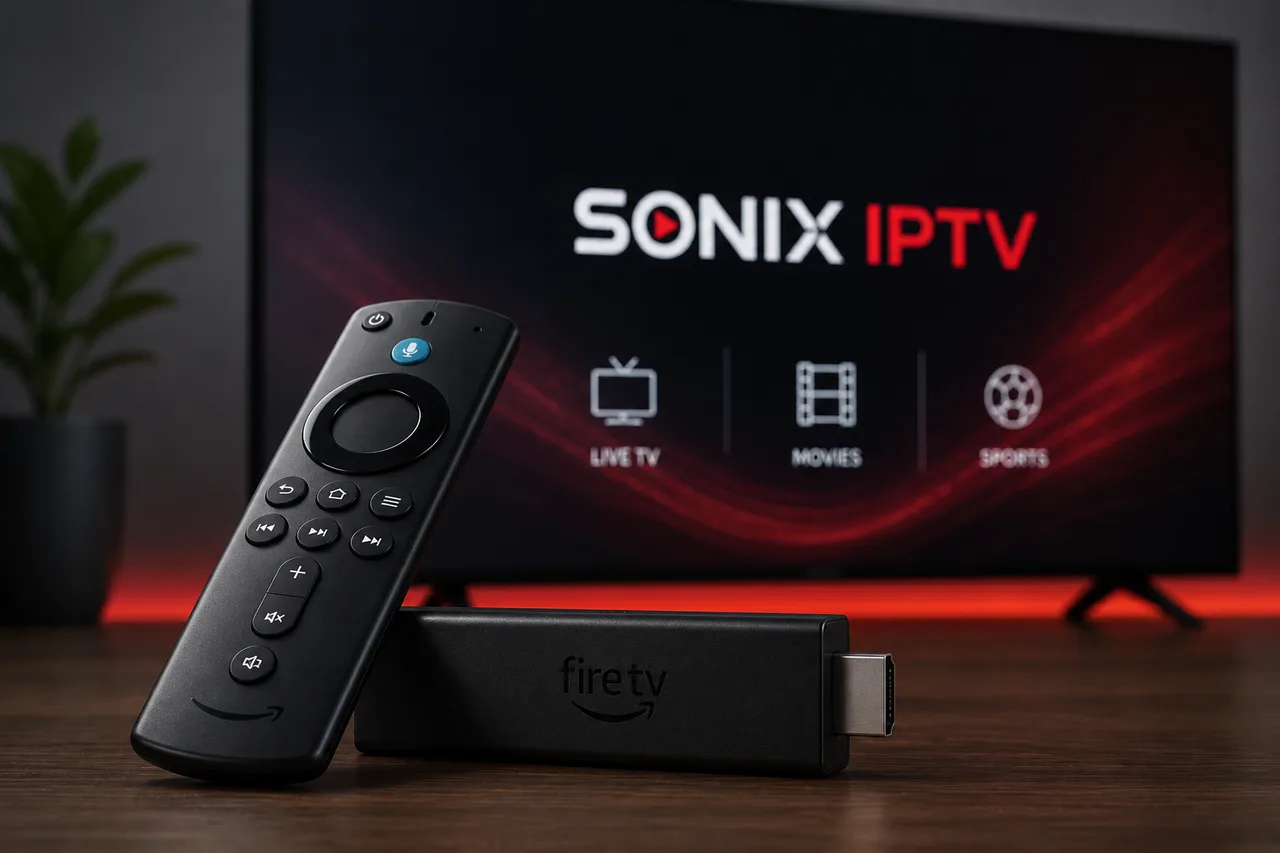
Amazon's Fire TV Stick is one of the most popular ways to watch IPTV, mainly because it's cheap, plugs into any HDMI port, and runs a huge range of streaming apps out of the box. This guide covers what to look for in an IPTV service before you subscribe, how Firestick setup actually works, and how to deal with the most common problems once you're up and running.
A quick refresher: what is IPTV?
IPTV (Internet Protocol Television) delivers live channels and on-demand video as data over your internet connection, instead of through a satellite dish or a cable box. If you want the fuller explanation, see our complete IPTV guide — this article focuses specifically on getting it running well on a Fire TV Stick.
Why Firestick is such a common choice for IPTV
- Inexpensive and small enough to travel with
- Plugs into any TV with an HDMI port, including older, non-smart TVs
- Supports most major IPTV player apps
- Regularly updated by Amazon, with a large existing app ecosystem
What to check before choosing an IPTV service
Not every provider is a good fit for every device, and picking the service matters more than the device itself. Before subscribing, check device compatibility, trial availability, support responsiveness, and pricing transparency — we cover this in full in our guide to choosing an IPTV provider. At minimum, confirm the provider explicitly supports Fire TV Stick and offers real customer support if setup goes wrong.
Firestick compatibility
| Device | General notes |
|---|---|
| Fire TV Stick (basic) | Supports most IPTV player apps; older models may struggle with 4K |
| Fire TV Stick 4K / 4K Max | Better performance for 4K playback and app switching |
| Fire TV Cube | More processing power, generally the smoothest experience of the Fire TV lineup |
Swipe to see more →
Amazon updates the Fire TV software regularly, so menus and app-store behavior can shift slightly between software versions — the general setup flow below still applies.
Internet requirements
A stable connection is more important than a fast one. For smooth HD/FHD playback, aim for at least 15–20 Mbps at the streaming device itself; for consistent 4K, 40+ Mbps is a safer target. A wired Ethernet adapter for your Fire TV Stick can noticeably reduce buffering versus Wi-Fi, especially in a busy household — see our full buffering troubleshooting guide if playback isn't smooth once you're set up.
How to set up IPTV on Firestick
1. Subscribe and get your credentials
After choosing a plan, your provider will send the details needed to activate the service on your device — typically a username/password or a playlist link tied to your account.
2. Install a compatible IPTV player app
Search the Amazon Appstore on your Fire TV Stick for a supported IPTV player app. If your provider's recommended player isn't listed in the Appstore, they'll typically point you to their own installation instructions for your specific device.
3. Enter your account details
Open the player app and enter the credentials or playlist information your provider gave you. This step is what actually connects the app to your subscription.
4. Load channels and EPG
Most player apps will automatically pull in your channel list and program guide once you're logged in. If the EPG doesn't populate immediately, give it a few minutes or check for an EPG refresh option in the app's settings.
5. Test playback
Try a few different channels and a VOD title to confirm everything is working smoothly before you consider setup complete.
4K and streaming quality considerations
4K playback is more demanding on both your internet connection and your Fire TV Stick's hardware. If you're on a basic (non-4K) Fire TV Stick, expect FHD/HD to be the more realistic ceiling — the 4K and 4K Max models are built for higher-resolution decoding.
Common Firestick IPTV problems
- Buffering or freezing — usually connection-related; see the buffering guide for a full checklist
- App crashes — often fixed by clearing the app's cache or reinstalling it
- Remote lag or slow navigation — can indicate the Stick is low on storage or running too many background apps
- EPG not loading — try a manual refresh from within the player app's settings
VPN considerations
Some people run a VPN alongside IPTV for general streaming privacy, particularly on public or shared networks. It's not required for IPTV to function, and it can occasionally add latency depending on server load — see our dedicated VPN for IPTV guide for when it helps and when it doesn't.
Legal considerations
IPTV as a technology is legal; what matters is whether the specific service you use holds proper distribution rights for its content. See our in-depth look at IPTV legality before subscribing to any provider.
Sonix IPTV on Firestick
Sonix IPTV supports Amazon Fire TV Stick alongside Smart TVs, Android and iOS devices, MAG boxes and Enigma2 receivers. See our features page for the full device list, or contact us if you're unsure whether your specific model is supported.
FAQ
Do I need a 4K Fire TV Stick for IPTV?
No — IPTV works on any Fire TV Stick model. A 4K model is only necessary if you specifically want 4K playback and your plan/connection supports it.
Why does my IPTV app keep crashing on Firestick?
This is most often a cache or storage issue. Try clearing the app's cache first, and check that your Fire TV Stick isn't low on available storage.
Can I use IPTV on Firestick without Wi-Fi?
You need an internet connection of some kind — Wi-Fi is most common, but a wired Ethernet adapter also works and can be more stable.
Ready to try it on your own Firestick? Request your free trial and our team will help confirm everything is set up correctly.