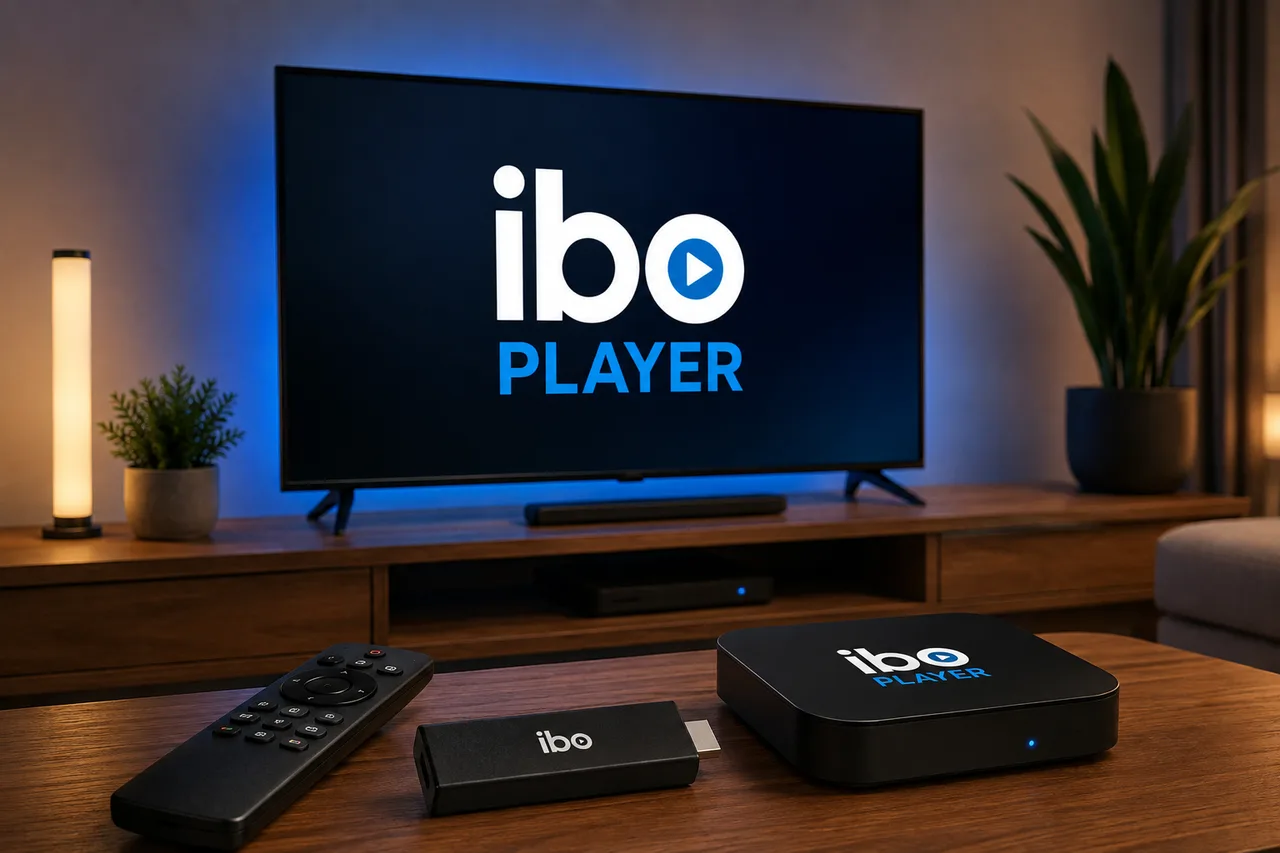
Looking for a simple way to watch IPTV on your Smart TV or a compatible streaming device? IBO Player is a media player that can be used to play compatible IPTV playlists. Unlike an IPTV provider, IBO Player does not supply channels or a subscription by itself.
In this complete guide, you'll learn what IBO Player is, how it works, how to install it, how to add an IPTV playlist, how to use Sonix IPTV with IBO Player, and how to troubleshoot common playback and playlist problems.
Important: IBO Player is a player application, not an IPTV subscription. You need a separate authorized IPTV service or compatible playlist to access content. Always make sure the content you access is legally authorized in your country.
What Is IBO Player?
IBO Player is a media player designed to play compatible streaming playlists, including M3U and M3U8 playlists. It provides the player interface, while your IPTV provider supplies the playlist or streaming access.
This distinction is important because installing IBO Player does not automatically give you live TV channels, movies, or series.
If you want to learn more about IPTV itself, read our complete guide to IPTV. You can also visit the official IBO Player website for information about the application.
Is IBO Player an IPTV Service?
No. IBO Player is an IPTV/media player, not an IPTV service provider.
The application provides a way to play compatible content, while an IPTV provider supplies the playlist or account information required to access its service.
For example, if you're using Sonix IPTV, your subscription and IBO Player serve different purposes. Sonix IPTV provides your service access, while IBO Player can be used as the media player on a compatible device.
If you're comparing IPTV services before choosing one, see our guide to choosing an IPTV service in 2026.
What Do You Need Before Setting Up IBO Player?
Before starting your IBO Player IPTV setup, prepare the following:
- A compatible Smart TV or streaming device
- A stable internet connection
- The IBO Player application
- An active and authorized IPTV service or compatible playlist
- Your M3U or M3U8 playlist URL, if provided by your service
- Your IBO Player device information when required
Having your playlist information ready before starting makes the setup process much easier.
For official information, visit IBO Player Support.
How to Install IBO Player
The installation process depends on the operating system and device you're using. Whenever possible, install applications through the official application store or official source supported by your device.
Avoid downloading modified or unknown APK files from untrusted websites.
How to Install IBO Player on Samsung Smart TV
If IBO Player is available for your Samsung Smart TV model and region, you can normally install it through the TV's Apps interface.
- 1. Turn on your Samsung Smart TV.
- 2. Press the Home button on your remote.
- 3. Open Apps.
- 4. Select the search option.
- 5. Search for IBO Player.
- 6. Select the application if it is available.
- 7. Choose Install.
- 8. Open IBO Player after the installation finishes.
Samsung's official support documentation explains how applications are installed through the Smart TV Apps interface, although menus and availability can vary by model, software version, and region. See Samsung's official Smart TV app support.
For a complete IPTV installation guide on Samsung TVs, visit our IPTV on Samsung Smart TV guide.
What If IBO Player Is Not Available on Samsung?
If you cannot find IBO Player in the Samsung app store, the application may not be available for your particular TV model, software version, or region.
Availability can depend on:
- Samsung TV model
- Tizen/software version
- Country or region
- Current application availability
- Developer support
Check Samsung's official support resources before attempting unofficial installation methods — see Samsung's official Smart TV app information.
How to Install IBO Player on LG Smart TV
On a compatible LG Smart TV, applications can generally be installed through the Apps interface or LG Content Store.
- 1. Press Home on your LG remote.
- 2. Open Apps or the LG Content Store.
- 3. Choose the search option.
- 4. Search for IBO Player.
- 5. Select IBO Player if it is available.
- 6. Select Install.
- 7. Launch the application.
Application availability can vary depending on your LG TV model, webOS version, country, and current app-store availability. See the LG official Smart TV app installation guide.
How to Install IBO Player on Android TV & Google TV
If your Android TV or Google TV device supports IBO Player, search for the application through the appropriate official application store or supported download source.
- 1. Open your device's application store.
- 2. Search for IBO Player.
- 3. Select the application if available.
- 4. Choose Install.
- 5. Open IBO Player after installation.
If you're using Android TV or Google TV for IPTV, you can also follow our Android TV and Google TV IPTV setup guide.
See the IBO Player official downloads page for supported sources.
How to Add an IPTV Playlist to IBO Player
After installing IBO Player, you need to add a compatible IPTV playlist before your content can appear.
The exact interface can change between application versions, but the general setup process follows the same principle.
Step 1: Open IBO Player
Launch IBO Player on your compatible Smart TV or streaming device. Depending on the application version, you may see information such as your device MAC address or Device Key.
Step 2: Get Your IPTV Playlist
Contact your IPTV provider or use the connection information supplied with your authorized subscription.
- M3U URL
- M3U8 URL
- Playlist URL
- Other supported connection information
Step 3: Open the Playlist Management System
Use the official IBO Player playlist management method and enter the requested device information — see IBO Player official support.
Step 4: Add Your Playlist
Enter the M3U or M3U8 playlist information supplied by your IPTV provider. Before saving, check carefully for:
- Incorrect characters
- Missing characters
- Extra spaces
- Incorrect playlist URL
- Expired subscription information
Step 5: Restart IBO Player
After saving the playlist, close and reopen IBO Player. If the playlist is active and compatible, your available content should appear.
How to Set Up Sonix IPTV on IBO Player
If you're using Sonix IPTV with IBO Player, the setup generally involves connecting your Sonix IPTV playlist to the IBO Player application.
- 1. Make sure your Sonix IPTV subscription is active.
- 2. Install IBO Player on your compatible device.
- 3. Open IBO Player and locate the device information displayed by the application.
- 4. Use the playlist information provided by Sonix IPTV and enter it through the supported IBO Player playlist setup method.
- 5. Save the playlist and check that the information was entered correctly.
- 6. Restart IBO Player and allow the playlist to load.
If you're still choosing the right hardware for IPTV, visit our Best Device for IPTV in 2026 guide.
You can also visit our Sonix IPTV pricing page to explore the available plans.
How to Find Your IBO Player MAC Address
Some IBO Player setup methods use your device's MAC address or MAC ID to associate your playlist with the application.
- 1. Open IBO Player.
- 2. Go to the application's device information screen.
- 3. Locate the displayed MAC address or MAC ID.
- 4. Copy it exactly as displayed.
Avoid manually changing characters or adding unnecessary spaces. See the official IBO Player FAQ.
Why Did My IBO Player MAC Address Change?
Some televisions can use different MAC addresses for different network interfaces. For example, switching between Wi-Fi and Ethernet can affect the device information displayed or used by the application.
If your IPTV playlist stops working after changing your network connection, check the device information again before changing your playlist.
Does IBO Player Support M3U and M3U8?
Yes. IBO Player supports compatible M3U and M3U8 playlists.
M3U and M3U8 are playlist formats commonly used to organize streaming URLs. However, having an M3U playlist does not guarantee that every stream will work.
Playback can depend on the device, application, stream format, network connection, playlist configuration, and streaming source. See IBO Player official support.
IBO Player Not Working? Common Problems and Fixes
If IBO Player isn't working correctly, the application itself may not always be responsible. The problem can also come from the playlist, device, network, or streaming source.
1. IBO Player Playlist Is Not Loading
Start by checking whether your playlist is still active and correctly entered.
- Check the playlist URL
- Check for typing mistakes
- Confirm your IPTV subscription is active
- Check whether the playlist has expired
- Ask your provider whether the connection information has changed
2. IBO Player Is Stuck Loading
Try the following basic troubleshooting steps:
- 1. Close IBO Player.
- 2. Restart your TV or streaming device.
- 3. Restart your router if necessary.
- 4. Check that your internet connection is working.
- 5. Open IBO Player again.
- 6. Refresh or re-add the playlist if required.
3. IBO Player Works but Some Channels Do Not
If some streams work while others don't, the issue may be limited to individual streams rather than the entire application. Possible causes include:
- An unavailable streaming source
- A changed stream URL
- Device compatibility limitations
- Provider-side problems
- Unsupported video or audio formats
4. Playlist Works on Another Device but Not Your TV
Different devices can support different video and audio formats. Network configuration can also differ between devices.
Test the same playlist on another compatible device if possible. This can help determine whether the problem is related to the device or the playlist. If the problem is buffering or freezing rather than playlist loading, see our IPTV buffering and freezing guide.
How to Reduce IPTV Buffering on IBO Player
A better IPTV player cannot fix every network problem. Your internet connection, router, streaming device, and streaming source can all affect playback.
Use Ethernet When Practical
If your router is close to your TV or streaming device, an Ethernet connection can provide a consistent wired connection and remove many of the variables associated with Wi-Fi.
Improve Your Wi-Fi Connection
If you're using Wi-Fi, avoid placing the router too far from your television and reduce unnecessary network traffic when possible.
Restart Your Router
Temporary network problems can sometimes be resolved by restarting your router and streaming device.
Test Other Streaming Apps
If several streaming applications are buffering, the problem may be your internet connection rather than IBO Player.
For a complete troubleshooting checklist, read How to Fix IPTV Buffering.
Does IBO Player Have EPG?
EPG availability can depend on the playlist and provider configuration.
If your channels appear but program information is missing, check whether your IPTV provider supplies compatible EPG information. See the official IBO Player FAQ.
You can also learn more about electronic program guides in our IPTV EPG guide.
Is IBO Player Free?
IBO Player's licensing and activation options can vary depending on the application version and platform.
Before paying for any activation, make sure that:
- Your device supports the application
- Your IPTV playlist is available
- The application works correctly on your device
- You are using an official IBO Player source
Remember that an IBO Player activation and an IPTV subscription are separate. Activating the application does not provide IPTV channels.
See official IBO Player support for current details.
Is IBO Player Safe and Legal?
IBO Player is a media player, while the legality of the content you access depends on the source and whether you have authorization to use it.
Users should only access content they are legally entitled to watch and should follow the copyright and licensing requirements that apply in their jurisdiction.
Sonix IPTV also explains its approach to third-party content and user responsibilities in its Terms of Service.
For a broader explanation of IPTV legality, read our Is IPTV Legal in 2026? guide. You can also visit the official IBO Player website.
IBO Player vs Other IPTV Players
There is no single IPTV player that is perfect for every user. Your best option depends on your device, operating system, playlist format, interface preferences, and required features. For a side-by-side look at one of the most common alternatives, see our IPTV Smarters Pro setup guide.
| Feature | IBO Player | Other IPTV Players |
|---|---|---|
| M3U/M3U8 support | Yes | Depends on the application |
| Smart TV availability | Depends on supported platform | Depends on the application |
| Playlist management | Yes | Varies |
| IPTV channels included | No | Usually no |
| Separate IPTV service required | Yes | Usually |
| EPG | Provider/configuration dependent | Varies |
| Device compatibility | Depends on platform and version | Varies |
Swipe to see more →
Why Use IBO Player for IPTV?
For users with a compatible device and legitimate IPTV playlist, IBO Player can provide a dedicated interface for managing and playing streaming content. Potential benefits include:
- Support for compatible M3U/M3U8 playlists
- Availability on supported Smart TV and streaming platforms
- Dedicated media-player interface
- Playlist management
- Simple setup once your playlist information is available
However, compatibility should always be checked for your specific device, operating system, software version, and region.
IBO Player IPTV Setup Checklist
Before contacting support, use this quick checklist.
Device
- IBO Player is installed
- Your TV/device is connected to the internet
- The application is updated where applicable
- Your device information is correct
Playlist
- Your IPTV subscription is active
- Your playlist URL is correct
- There are no missing characters
- The playlist has not expired
Network
- Your internet connection is stable
- Other streaming applications work normally
- Your router has been restarted if necessary
- Wi-Fi or Ethernet has been tested
Application
- IBO Player has been restarted
- Your TV/device has been restarted
- The playlist has been refreshed if necessary
FAQ
What is IBO Player used for?
IBO Player is a media player that can play compatible IPTV playlists such as M3U and M3U8. It does not automatically provide an IPTV subscription or channel package.
Can I use Sonix IPTV with IBO Player?
If your Sonix IPTV subscription provides compatible playlist information and your device supports IBO Player, you can use the playlist with the player according to the setup information supplied with your service.
Does IBO Player come with channels?
No. IBO Player is a media player and does not automatically include an IPTV channel package. You need a separate authorized playlist or streaming source.
Does IBO Player support M3U?
Yes. IBO Player supports compatible M3U and M3U8 playlists.
Why is my IBO Player playlist not working?
Check your playlist URL, subscription status, internet connection, device compatibility, and whether your provider has changed the connection information.
Why did my IBO Player MAC address change?
Some devices can use different network interfaces for Wi-Fi and Ethernet. Changing the connection type can therefore affect the MAC address used by the application.
Does IBO Player have EPG?
EPG availability can depend on your playlist and provider configuration. If program information is missing, check whether your provider supplies compatible EPG data.
Can I install IBO Player on Samsung Smart TV?
If IBO Player is available for your Samsung TV model and region, you can normally install it through the TV's Apps interface. Availability can vary by model and software version.
Can I install IBO Player on LG Smart TV?
If the application is available for your compatible LG Smart TV, it can generally be installed through the Apps or LG Content Store interface.
Is IBO Player an IPTV provider?
No. IBO Player is a player application. It does not replace an IPTV provider or subscription.
Final Thoughts: Is IBO Player Good for IPTV?
IBO Player can be a useful IPTV player for users with a compatible device and an authorized playlist.
The most important thing to understand is that IBO Player and your IPTV service are separate. The player provides the interface for playback, while the IPTV provider supplies the service or playlist.
For the best possible experience, use compatible hardware, a stable internet connection, a properly configured playlist, and a reliable authorized service.
Ready to explore Sonix IPTV? View Sonix IPTV pricing or learn more about our service through the Sonix IPTV features page.
You can also continue reading:
- How to Set Up IPTV on Samsung Smart TV in 2026
- How to Set Up IPTV on Android TV & Google TV in 2026
- Best IPTV for Firestick in 2026
- Best Device for IPTV in 2026
- How to Fix IPTV Buffering
- Do You Need a VPN for IPTV?
Official external resources: IBO Player Official Website · IBO Player Official Support · Samsung Official Smart TV Support · LG Official Smart TV Support