
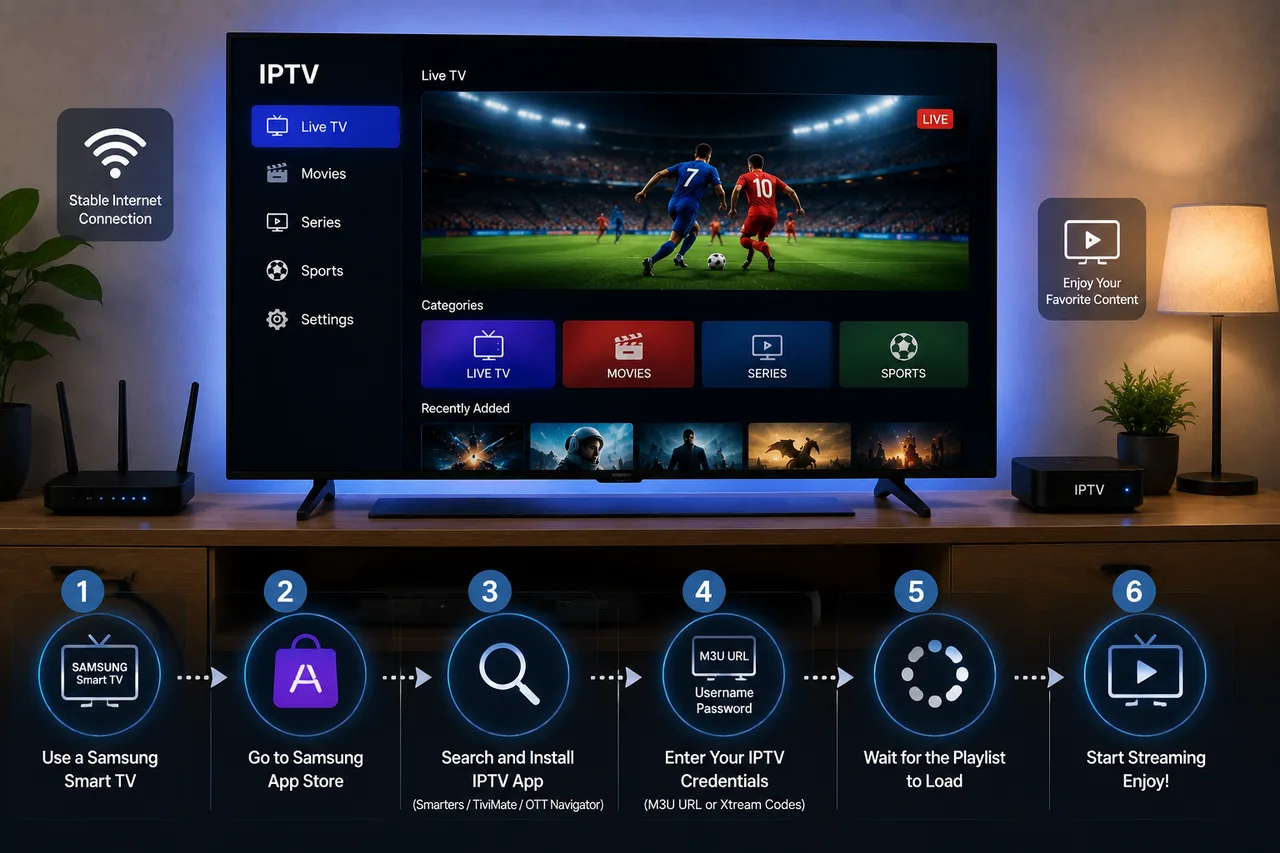
Samsung Smart TVs can run IPTV player apps directly, which means no extra streaming box is required in many cases. This guide walks through general setup, what varies between models, and how to troubleshoot the most common issues.
Samsung's Tizen interface changes across TV years and regions, and app-store availability can vary by model. Menu names and steps below may differ slightly on your specific TV — check your TV's own settings menu if something doesn't match exactly.
Samsung TV compatibility considerations
Most Samsung Smart TVs from the last several years run the Tizen operating system and support app installation through the Samsung Smart Hub / App Store. Very old models with limited app-store support may need an external streaming device instead — see our Firestick setup guide as an alternative in that case.
Internet requirements
As with any IPTV setup, a stable connection matters more than a fast one. Aim for at least 15–20 Mbps for HD/FHD and 40+ Mbps for consistent 4K. A wired Ethernet connection to your Samsung TV, where possible, is typically more stable than Wi-Fi.
How to set up IPTV on Samsung Smart TV
1. Subscribe and get your credentials
Choose a plan and get the account details or playlist information your provider sends after subscribing.
2. Install a compatible IPTV player app
From your TV's Smart Hub / App Store, search for a supported IPTV player app. Availability varies by region and TV model, so check what's listed on your specific TV first.
3. Enter your subscription details
Open the installed app and log in with the credentials or playlist link your provider gave you to connect the app to your account.
4. Load your channel list and EPG
Most apps pull in your channels and program guide automatically after login. If the EPG appears empty, check the app's settings for a manual refresh option.
5. Test playback across a few channels
Confirm smooth playback on a few different channels and a VOD title before considering setup finished.
Picture quality on Samsung TVs
Samsung's own display processing can affect how content looks, separate from the stream quality itself — check your TV's picture settings if content looks noticeably soft or oversharpened.
Troubleshooting
Buffering
Follow our full IPTV buffering checklist — start with a speed test and a router restart, then check for Wi-Fi congestion.
Restart and network checks
Restarting the TV and router resolves a surprising number of playback issues, and is worth doing before more involved troubleshooting.
App not appearing in the App Store
This can happen due to regional availability or an older TV model. If your preferred player isn't listed, ask your provider which apps they recommend for your specific TV model.
VPN considerations
Some Samsung TVs support VPN apps directly; others don't, which means a router-level VPN is the more practical option if you want one. See our VPN for IPTV guide for the trade-offs.
Legal considerations
As with any device, what matters is the legitimacy of the IPTV service itself, not the TV. See our IPTV legality guide for a fuller explanation.
Sonix IPTV on Samsung Smart TV
Sonix IPTV supports Samsung Smart TVs alongside LG and Sony Smart TVs, Fire TV Stick, Android/iOS and set-top boxes. See our features page for the full compatibility list, or contact us if you're unsure about your specific model.
FAQ
Do all Samsung Smart TVs support IPTV apps?
Most models from recent years do, via the Tizen App Store, but availability varies by region and TV age. Very old models may need an external device instead.
Why is my IPTV app missing from the Samsung App Store?
This is usually a regional availability issue. Check with your provider for the specific apps they recommend for Samsung TVs.
Can I use IPTV on Samsung TV without an app?
No — you need a compatible player app installed on the TV (or an external streaming device) to connect to your IPTV subscription.
Ready to set it up on your own Samsung TV? Request your free trial and we'll help confirm compatibility.