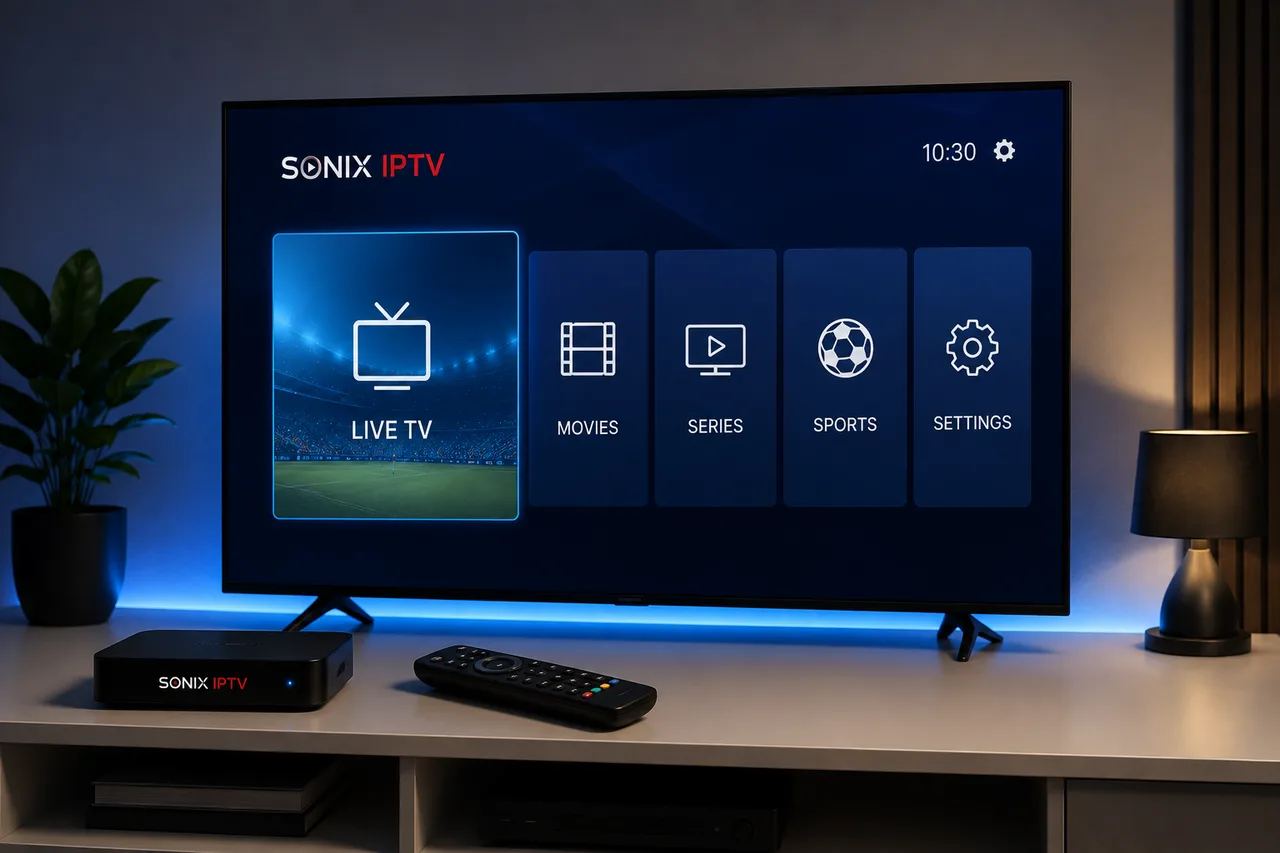
Android TV and Google TV power a huge range of hardware — from the Google TV Streamer and Chromecast with Google TV, to standalone Android TV boxes, to Smart TVs from brands like Sony, TCL and Hisense. This guide covers what to check before choosing an IPTV service, how setup actually works, and how to deal with the most common problems once you're up and running.
Android TV vs. Google TV — what's the difference?
Google TV is a user-interface layer built on top of the Android TV operating system, with a more content-focused home screen. In practice this means: if your device shows recommendations and a search-first home screen, it's running Google TV; if it shows a more app-grid-style layout, it's likely running Android TV directly. Both share the same underlying app ecosystem, so IPTV apps generally work the same way on either. For the broader hardware picture, see our best IPTV device comparison.
Why Android TV / Google TV works well for IPTV
- Access to the Google Play Store, which carries most major IPTV player apps
- Available on affordable dedicated hardware (Chromecast with Google TV, Google TV Streamer) as well as many Smart TVs
- Regularly updated by Google, with broad app-ecosystem support
- Built-in Ethernet on several models, useful for connection stability
What to check before choosing an IPTV service
Not every provider is a good fit for every device. Before subscribing, check device compatibility, trial availability, support responsiveness, and pricing transparency — see our full guide to choosing an IPTV provider. At minimum, confirm the provider explicitly supports Android TV or Google TV, since app availability can vary by platform.
Android TV / Google TV device compatibility
| Device | General notes |
|---|---|
| Chromecast with Google TV | Compact, affordable, widely compatible with major IPTV apps |
| Google TV Streamer (4K) | Dedicated box with built-in Ethernet and stronger hardware |
| Android TV boxes (various brands) | Hardware varies significantly — check RAM, storage and software support before buying |
| Smart TVs running Google TV (Sony, TCL, Hisense and others) | No extra hardware needed if the TV already runs Google TV |
Swipe to see more →
See our full device comparison guide for a deeper breakdown of what to look for in the hardware itself.
Internet requirements
A stable connection matters more than a fast one. Aim for at least 15–20 Mbps for HD/FHD, and 40+ Mbps for consistent 4K. Where your device supports it, a wired Ethernet connection is typically more stable than Wi-Fi — see our full buffering troubleshooting guide if playback isn't smooth once you're set up.
How to set up IPTV on Android TV / Google TV
1. Subscribe and get your credentials
After choosing a plan, your provider will send the details needed to activate the service — typically a username/password or a playlist link tied to your account.
2. Set up your device
If you're setting up new hardware, follow Google's official device setup guide to connect it to your TV and network first.
3. Install a compatible IPTV player app
On Google TV, you can install apps directly from the Apps tab on the home screen. On Android TV, apps are installed through the Google Play Store. Search for a supported IPTV player app in either case — availability can vary by region.
4. Enter your account details
Open the installed player app and log in with the credentials or playlist information your provider gave you.
5. Load your channel list and EPG
Most apps pull in your channels and program guide automatically after login. If the EPG appears empty, check the app's settings for a manual refresh option.
6. Test playback
Try a few different channels and a VOD title before considering setup complete.
4K and streaming quality considerations
4K playback is demanding on both your connection and your device's hardware. Dedicated boxes like the Google TV Streamer are built for stronger 4K decoding, while budget Android TV boxes may be a more realistic fit for HD/FHD — see our device comparison guide for the full breakdown.
Common Android TV / Google TV IPTV problems
- Buffering or freezing — usually connection-related; see the full buffering checklist
- App crashes or slow navigation — try clearing the app's cache or checking available storage
- Playback or connectivity issues — Google's device troubleshooting guide covers general fixes for Google TV hardware
- EPG not loading — try a manual refresh from within the player app's settings
VPN considerations
Some people run a VPN alongside IPTV for general streaming privacy, particularly on public or shared networks. It's not required for IPTV to function, and it can occasionally add latency — see our dedicated VPN for IPTV guide for when it helps and when it doesn't.
Legal considerations
IPTV as a technology is legal; what matters is whether the specific service you use holds proper distribution rights for its content. See our in-depth look at IPTV legality before subscribing to any provider.
Sonix IPTV on Android TV / Google TV
Sonix IPTV supports Smart TVs — including Sony models that run Google TV — alongside Fire TV Stick, Android and iOS devices, MAG boxes and Enigma2 receivers. If you're using a standalone Android TV or Google TV box, contact us to confirm compatibility with your specific device and preferred player app before subscribing.
FAQ
Is Android TV the same as Google TV?
Not exactly — Google TV is an interface layer built on top of the Android TV operating system. Both run the same underlying app ecosystem, so IPTV apps generally work on either.
Do I need a separate box if my TV already runs Google TV?
No — if your Smart TV already runs Google TV, you can typically install a compatible IPTV player app directly on the TV without extra hardware.
Why does my IPTV app keep crashing on my Android TV box?
This is most often a cache or storage issue, or underpowered hardware on budget devices. Try clearing the app's cache first, and check our device comparison guide if you're considering an upgrade.
Can I use IPTV on Android TV without Wi-Fi?
You need an internet connection of some kind — Wi-Fi is most common, but Ethernet (built-in on some models, or via an adapter) also works and can be more stable.
Ready to try it on your own Android TV or Google TV device? Request your free trial and our team will help confirm everything is set up correctly.