
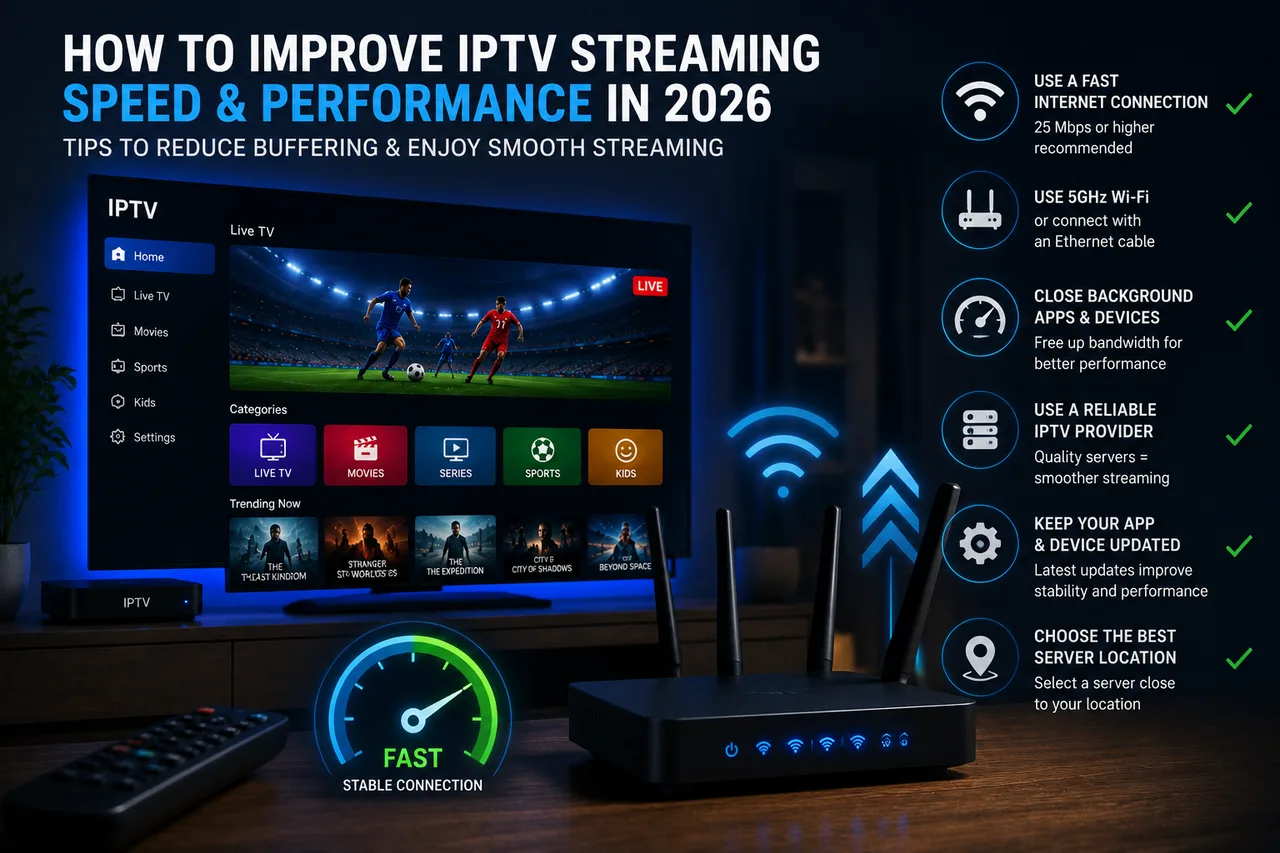
Buffering can come from several different places — your internet connection, your Wi-Fi setup, your device, your player app, or occasionally the provider's servers — so there's rarely a single fix that solves every case. This checklist walks through the most common causes in the order that's fastest to check, starting with the things you can rule out in under a minute.
Quick troubleshooting checklist
| Step | What to check |
|---|---|
| 1 | Run a speed test on the streaming device's network |
| 2 | Restart the router/modem and the streaming device or app |
| 3 | Switch from Wi-Fi to a wired Ethernet connection if possible |
| 4 | Check how many other devices are using the connection right now |
| 5 | Try a lower stream quality (e.g. FHD instead of 4K) to isolate bandwidth issues |
| 6 | Test on a different network (e.g. mobile hotspot) to isolate a router-side issue |
| 7 | If using a VPN, try switching servers or temporarily disabling it |
| 8 | Clear the player app's cache or reinstall it |
| 9 | Contact your provider's support if the issue is isolated to one channel |
Swipe to see more →
1. Check your internet speed
A stable connection of at least 15–20 Mbps is recommended for HD/FHD, and 40+ Mbps for consistent 4K playback on a single stream — well above the bare technical minimum, which leaves headroom for other devices on your network. Run a quick speed test on the actual device you're streaming on (not just your router) if playback is stuttering.
— Netflix Help Center, Internet Connection Speed Recommendations“3 Mbps or higher for 720p high definition video. 15 Mbps or higher for Ultra HD video.”
2. Restart your router and app
It sounds basic, but a fresh connection resolves a surprising number of playback issues by clearing out stale network state on both ends.
3. Switch to a wired connection where possible
Wi-Fi congestion is one of the most common causes of buffering, especially in the evening when household bandwidth use peaks and neighboring networks add interference. If your device supports Ethernet — including many Fire TV Sticks with an adapter and most Samsung Smart TVs — a wired connection is usually the single most effective fix.
4. Check for network congestion and device limits
Streaming, downloading, and video calls all compete for the same bandwidth. If several devices are active at once, try pausing other heavy usage and see if playback improves. Older or budget streaming devices can also struggle to decode 4K smoothly regardless of connection speed — see our Firestick setup guide for device-specific considerations.
5. Rule out VPN or DNS issues
A VPN adds an extra network hop, which can occasionally slow things down depending on server load and distance — see our full VPN for IPTV guide for when this helps versus hurts. If you use a custom DNS provider, temporarily switching back to your router's default DNS can also help isolate whether DNS resolution is part of the problem.
6. Clear the app cache or reinstall the player
Player apps can accumulate cached data or get into a bad state over time. Clearing the app's cache (or fully reinstalling it) is a common fix for playback that's degraded gradually rather than suddenly.
When to contact your provider
If the steps above don't help, or if the issue is isolated to a specific channel while everything else streams fine, the problem may be on the provider's side rather than yours. That's a good time to reach out directly with specifics — which channel, what device, and what you've already tried.
Still stuck? Our support team is on hand by email to walk through a fix with you directly.